> ## Documentation Index
> Fetch the complete documentation index at: https://docs.malga.io/llms.txt
> Use this file to discover all available pages before exploring further.
# Configuração de certificados
Para conseguir transacionar com Apple Pay é necessário ter uma conta de desenvolvedor do Apple, caso não tenha, acesse o [Apple Developer](https://developer.apple.com/account/resources/) e crie uma conta.
## Criando um Merchant Identifier na Apple
Um Merchant identifica você como um comerciante que pode aceitar pagamentos de Apple Pay. Para criar um Merchant, você precisa de um Apple Developer Account, acessar sua conta e seguir os passos abaixo:
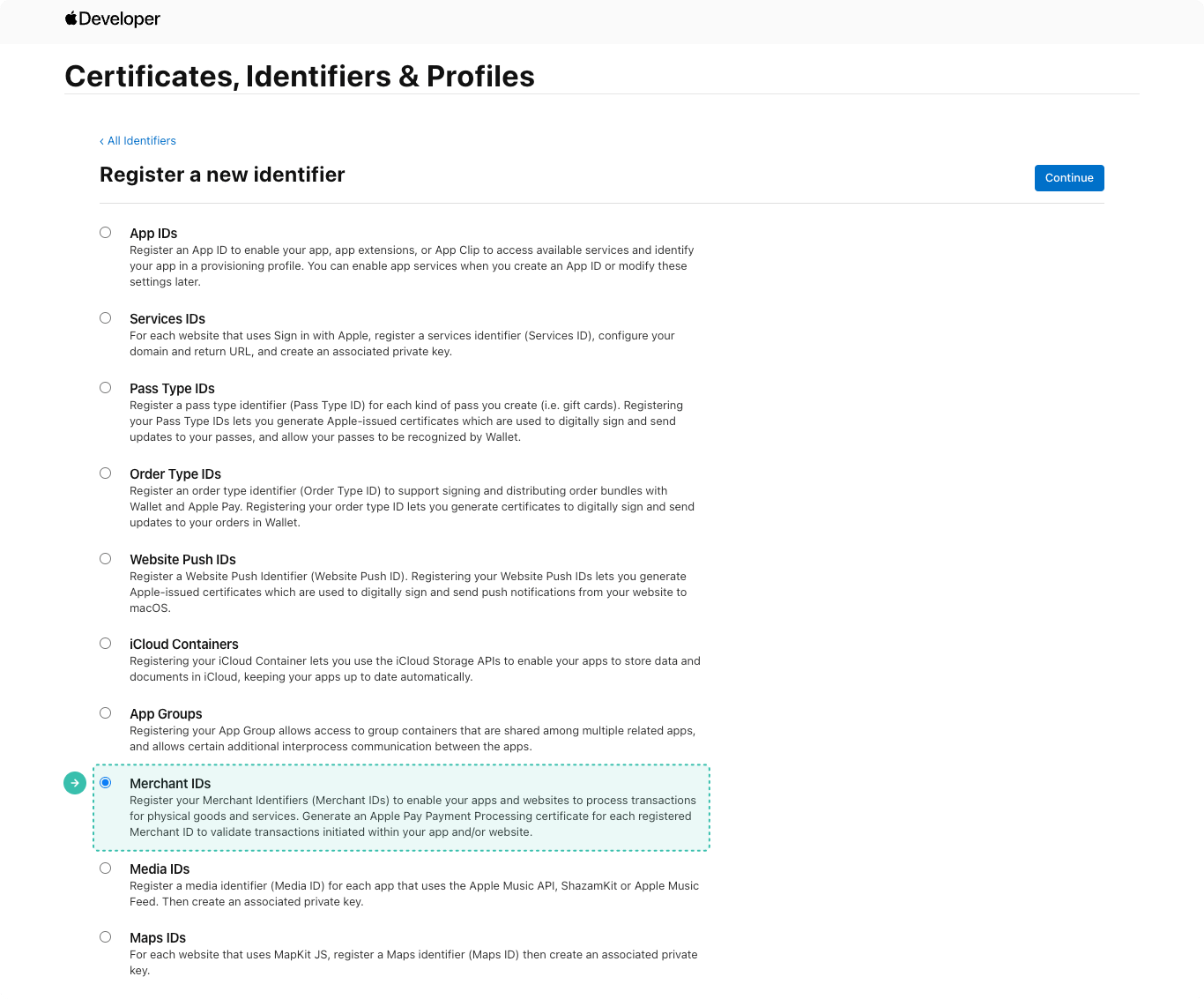
1. Na seção "Certificates, Identifiers & Profiles", selecione "Identifiers" e clique em "Register an App ID":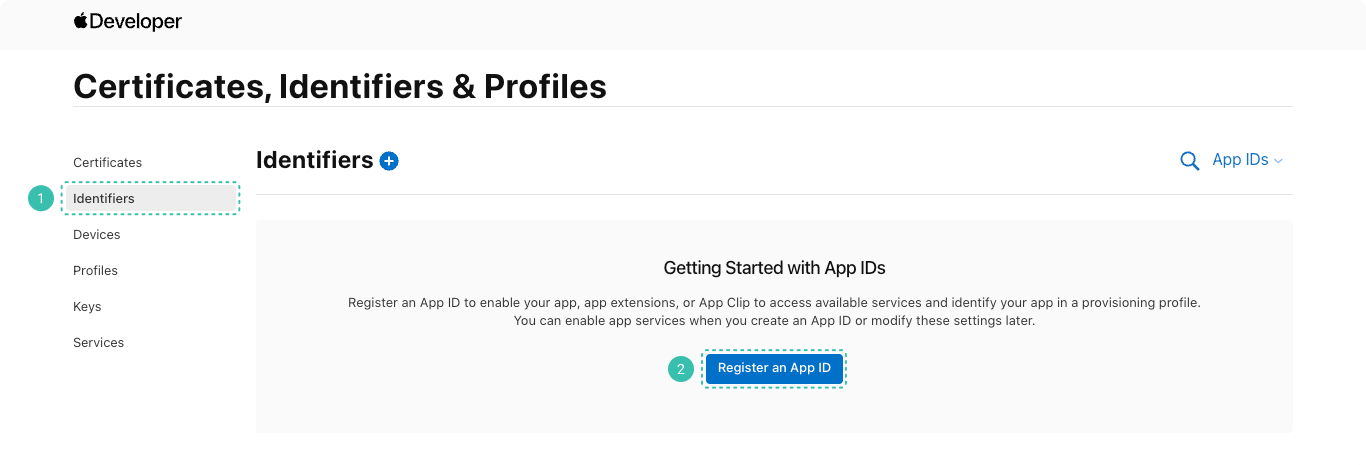 2. Selecione a opção "Merchant IDs":
 3. Preencha os campos "Description" e "Identifier":
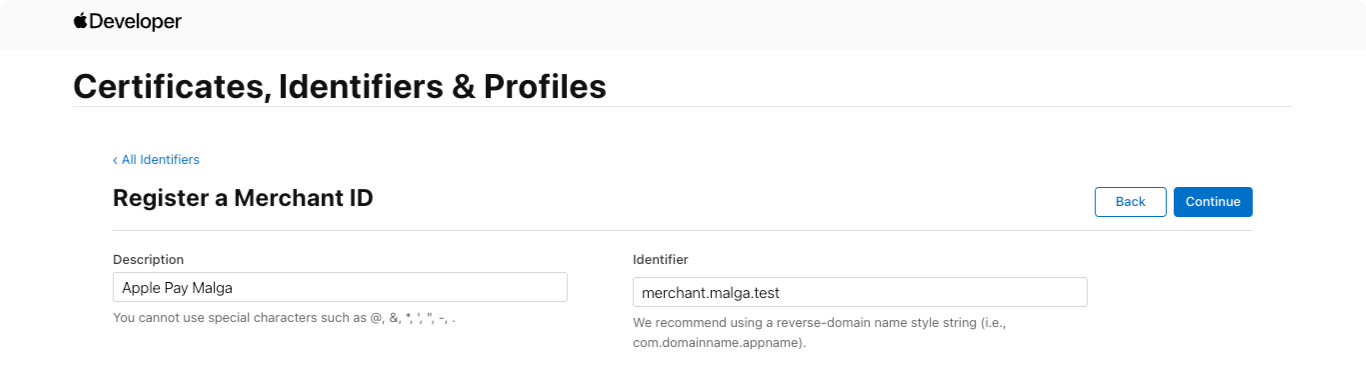 4. Finalize clicando em "Continue" e depois "Register".
## Criando um certificado de processamento de pagamento
Um certificado de processamento de pagamento é associado ao seu identificador e usado para criptografar as informações de pagamento. O certificado expira a cada 25 meses, quando revogado, você poderá gerar um novo certificado.
Para criar um certificado, você precisará de um certificado ".CSR", [que pode ser gerado na sua máquina](https://developer.apple.com/help/account/create-certificates/create-a-certificate-signing-request).
Com o ".CSR" em mãos:
1. Na seção "Certificates, Identifiers & Profiles", selecione "Identifiers";
2. Utilizando o filtro "App IDs", selecione "Merchant IDs":
4. Finalize clicando em "Continue" e depois "Register".
## Criando um certificado de processamento de pagamento
Um certificado de processamento de pagamento é associado ao seu identificador e usado para criptografar as informações de pagamento. O certificado expira a cada 25 meses, quando revogado, você poderá gerar um novo certificado.
Para criar um certificado, você precisará de um certificado ".CSR", [que pode ser gerado na sua máquina](https://developer.apple.com/help/account/create-certificates/create-a-certificate-signing-request).
Com o ".CSR" em mãos:
1. Na seção "Certificates, Identifiers & Profiles", selecione "Identifiers";
2. Utilizando o filtro "App IDs", selecione "Merchant IDs":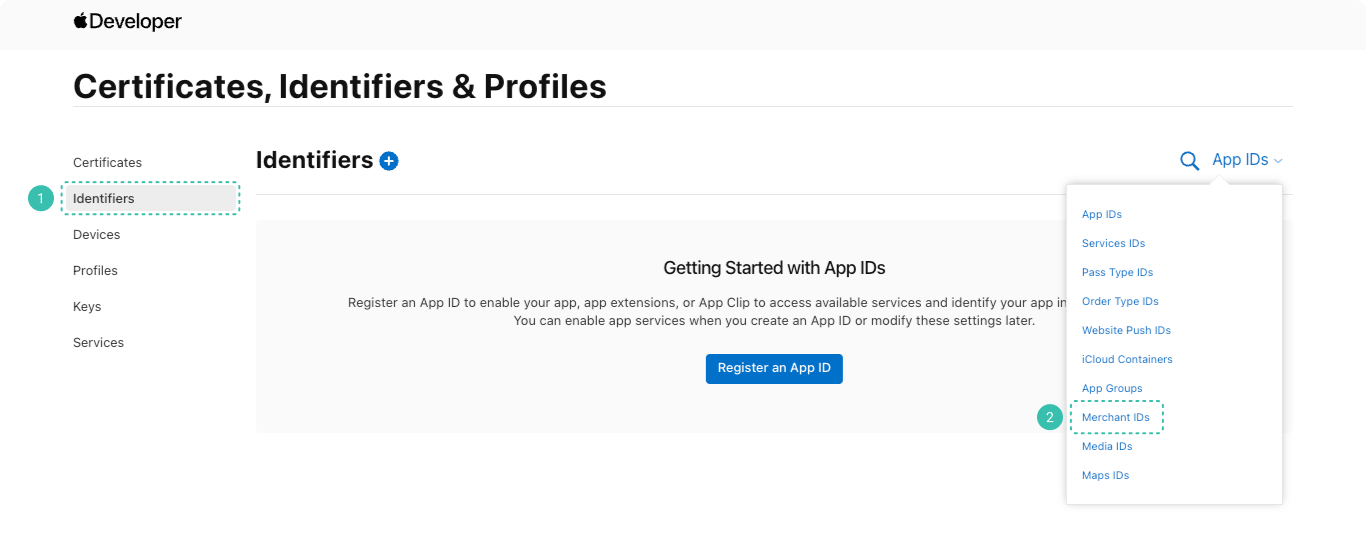 3. Selecione o identifier criado anteriormente:
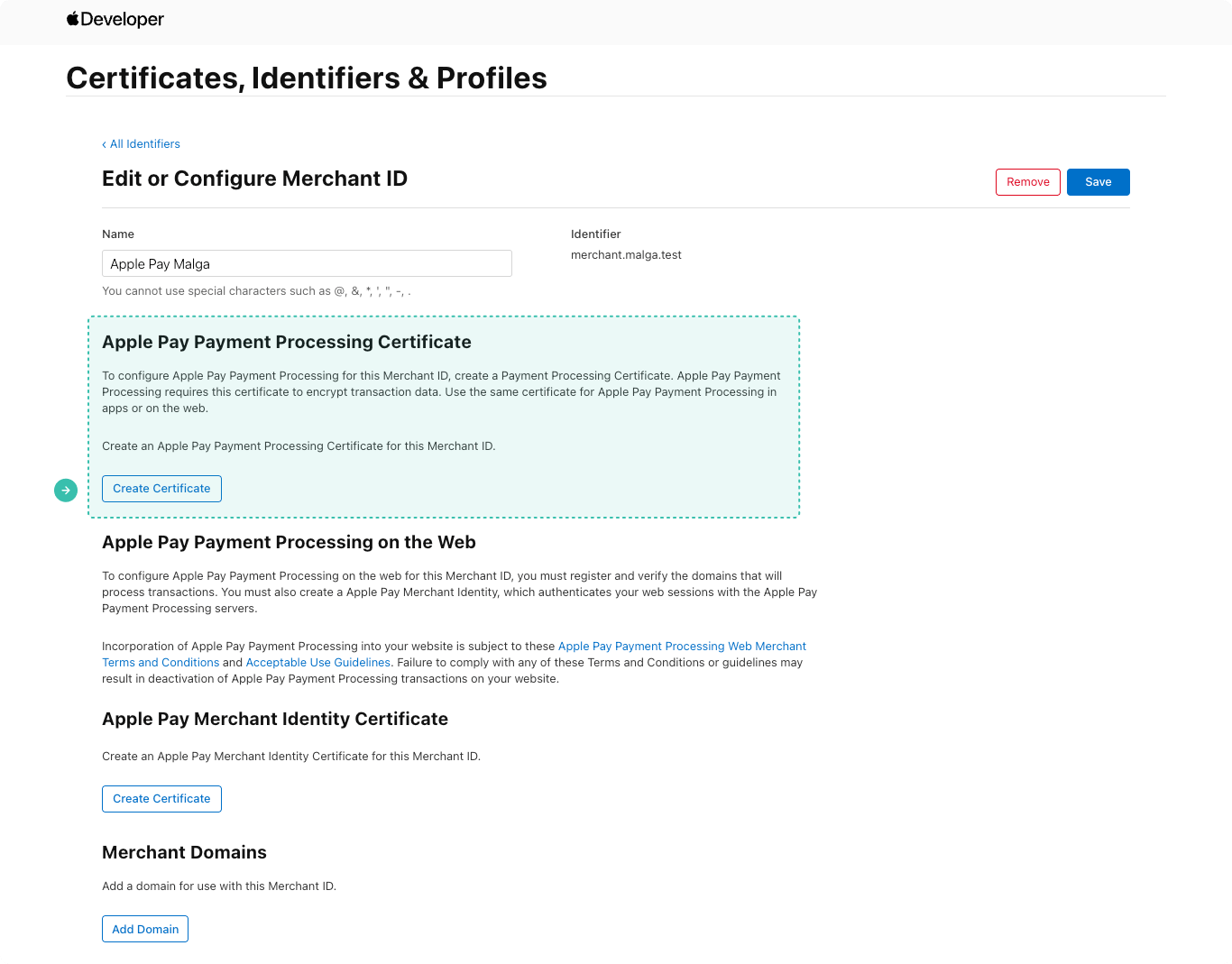
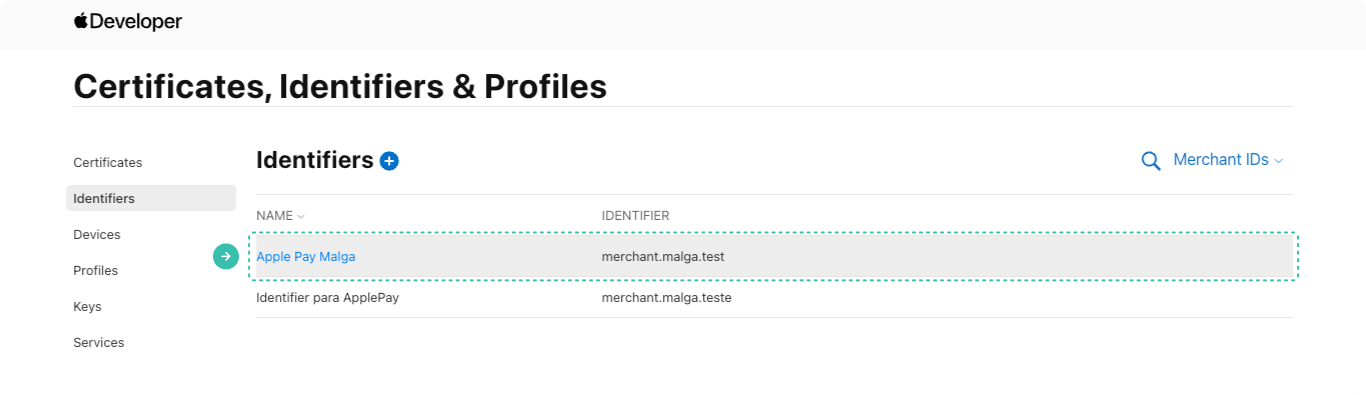 4. Na seção "Apple Pay Payment Processing Certificate", clique no botão "Create Certificate":
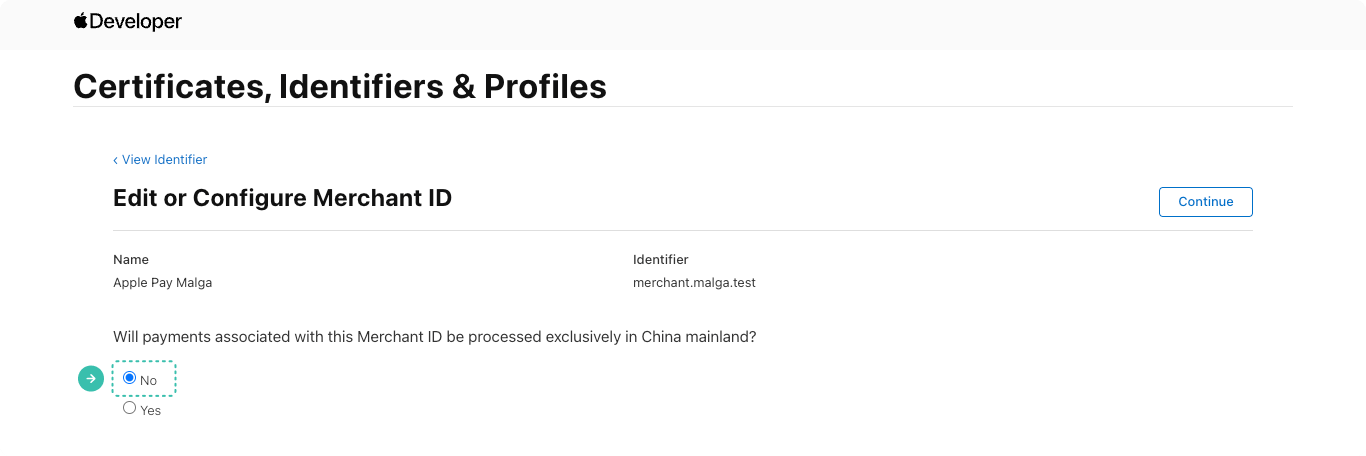
 5. Escolha a opção "No" em "Edit or Configure Merchant ID":
 6. Em "Choose File", faça upload do certificado ".CSR" gerado anteriormente:
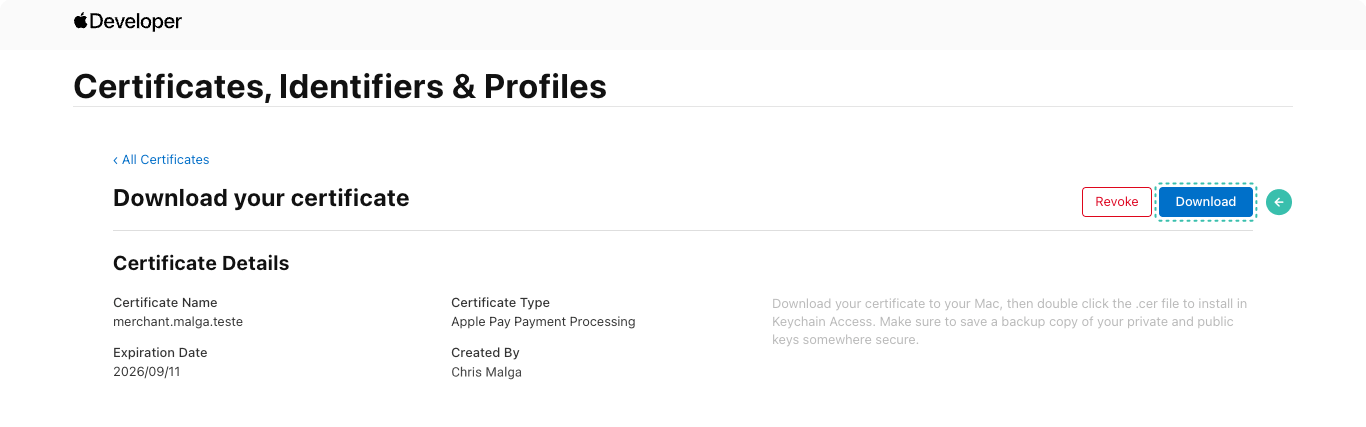
 7. Clique em "Continue" e depois em "Download" para baixar o certificado de pagamento:
 ## Registro de domínio
Caso você ofereça o Apple Pay através do seu site, será necessário registrar o domínio do site na Apple para que possa receber pagamentos.
1. Na seção "Certificates, Identifiers & Profiles", selecione "Identifiers" e filtre no "App IDs" por "Merchant IDs":
## Registro de domínio
Caso você ofereça o Apple Pay através do seu site, será necessário registrar o domínio do site na Apple para que possa receber pagamentos.
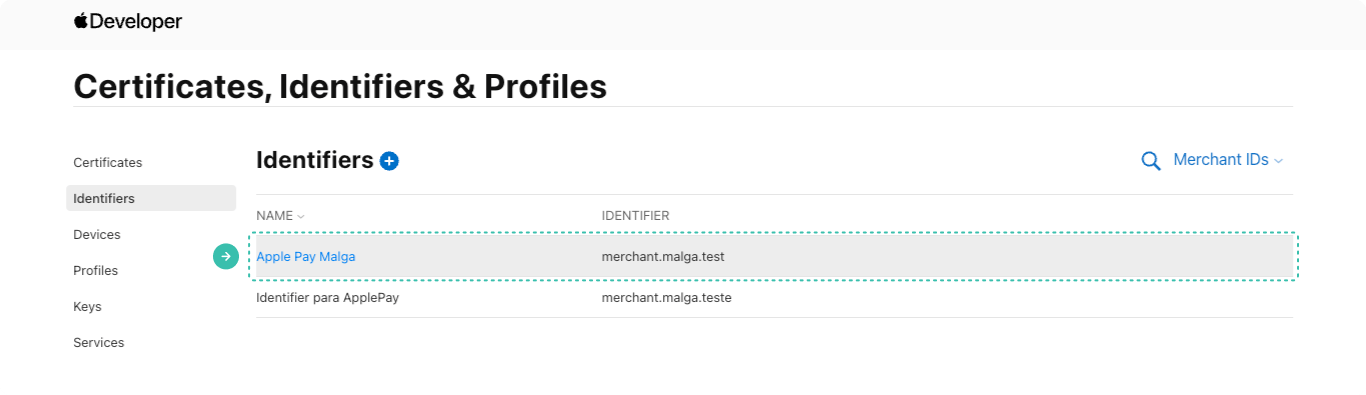
1. Na seção "Certificates, Identifiers & Profiles", selecione "Identifiers" e filtre no "App IDs" por "Merchant IDs":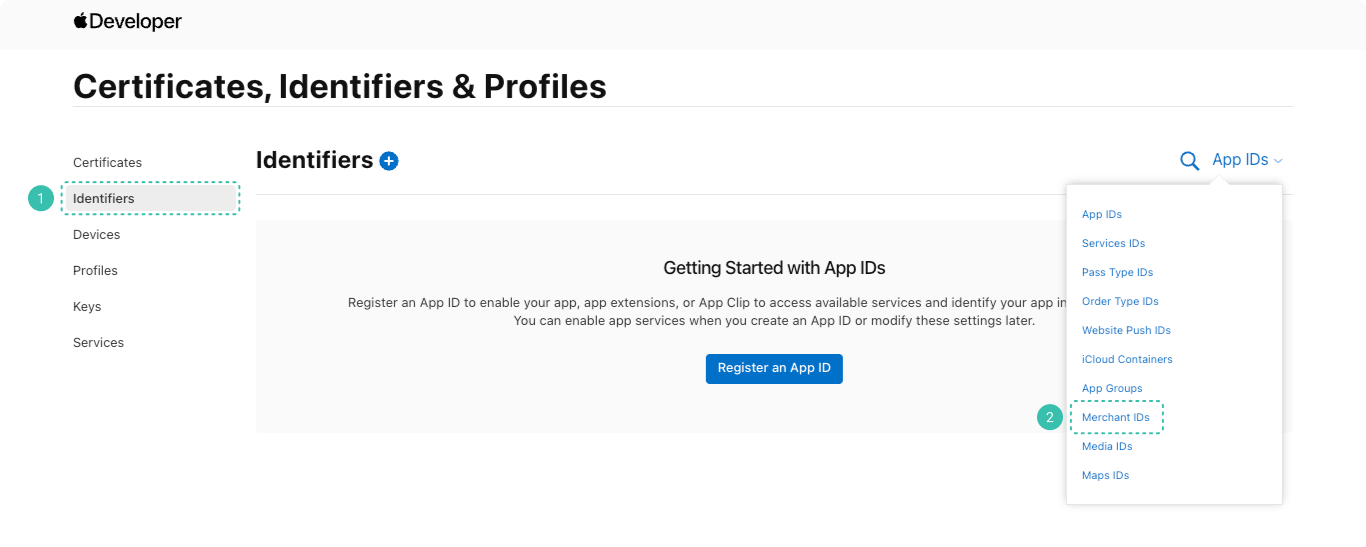 2. Selecione o identificador do seu merchant:
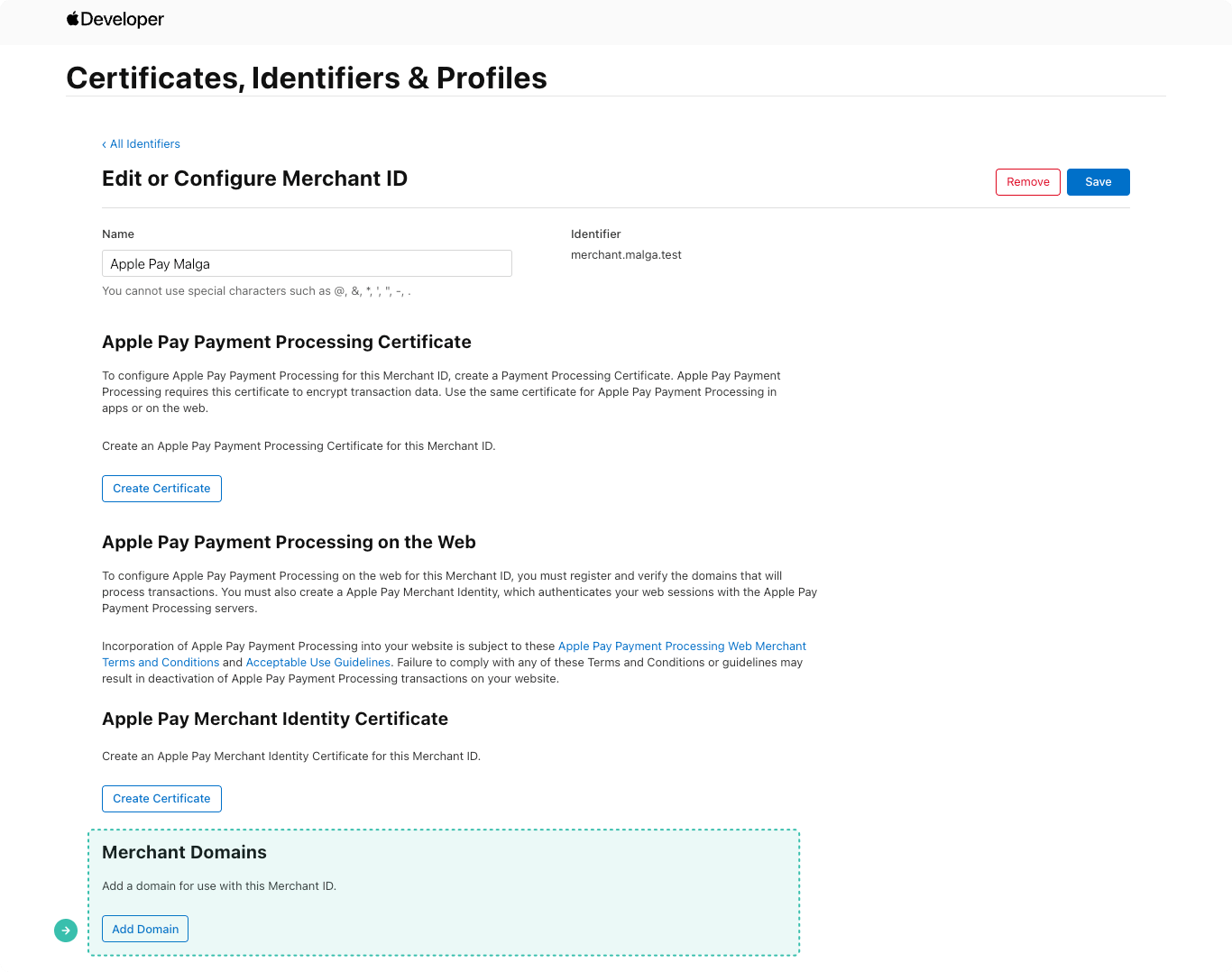
 3. Em "Merchant Domains", clique em "Add Domain":
 4. Preencha o domínio e clique em "Save":
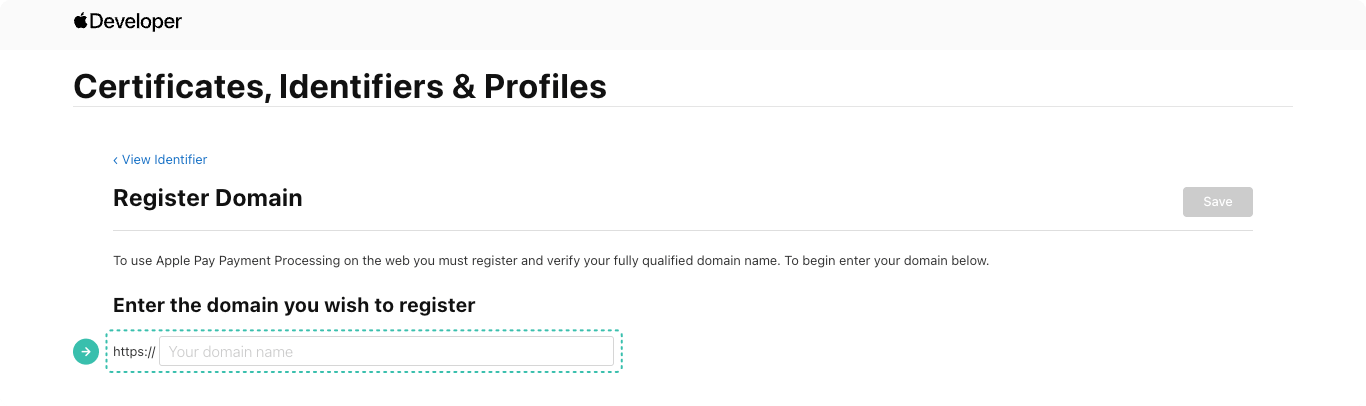 5. Clique em "Download" para baixar o arquivo de verificação;
6. Disponibilize o arquivo seguindo as próprias instruções da Apple;
7. Após disponibilizar, clique em "Verify":
5. Clique em "Download" para baixar o arquivo de verificação;
6. Disponibilize o arquivo seguindo as próprias instruções da Apple;
7. Após disponibilizar, clique em "Verify":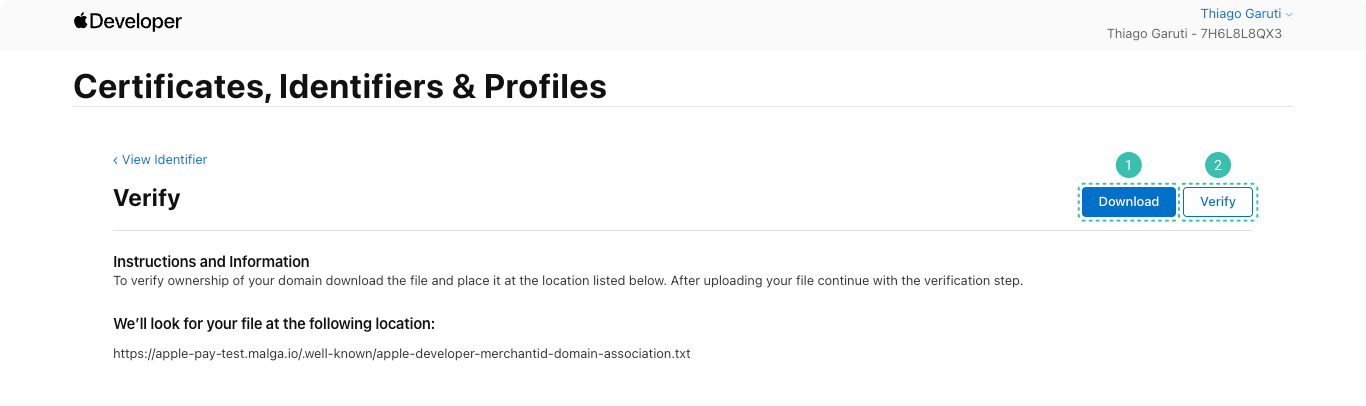 ## Criando um certificado de identidade do Merchant
1. Na seção "Certificates, Identifiers & Profiles", selecione "Identifiers" e filtre no "App IDs" por "Merchant IDs":
## Criando um certificado de identidade do Merchant
1. Na seção "Certificates, Identifiers & Profiles", selecione "Identifiers" e filtre no "App IDs" por "Merchant IDs":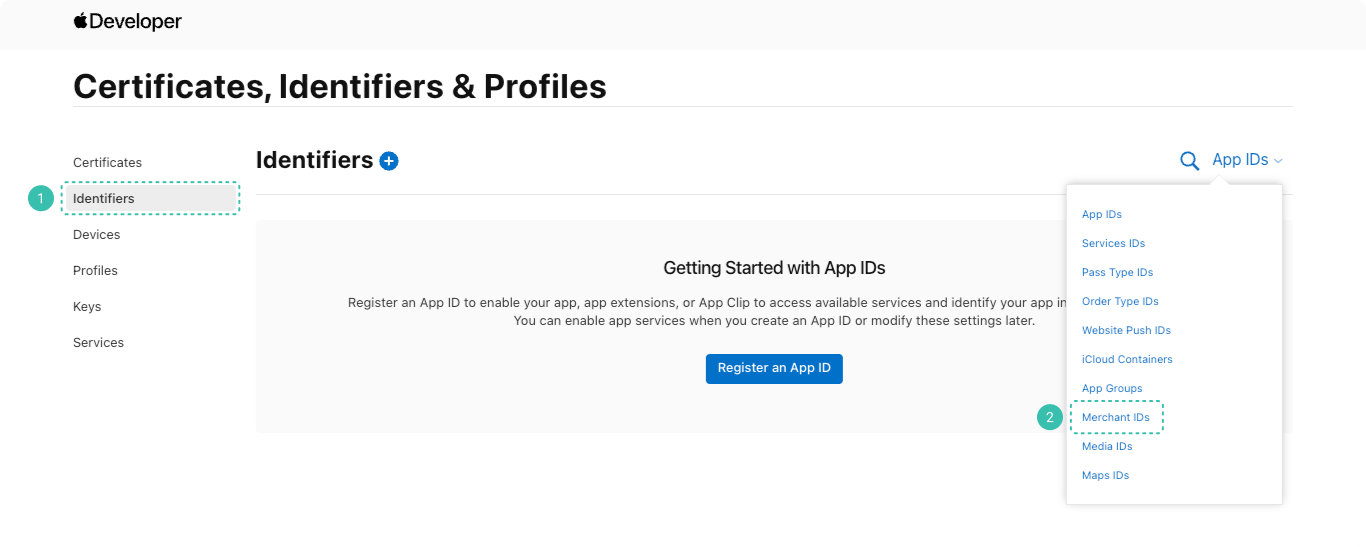 2. Selecione o identificador do seu merchant:
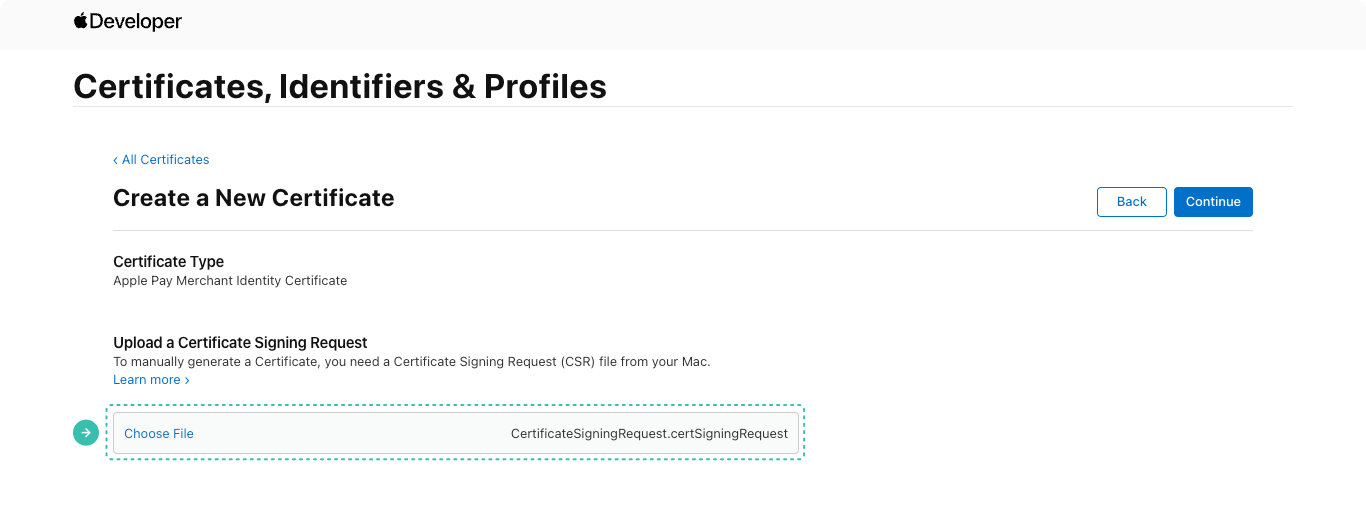
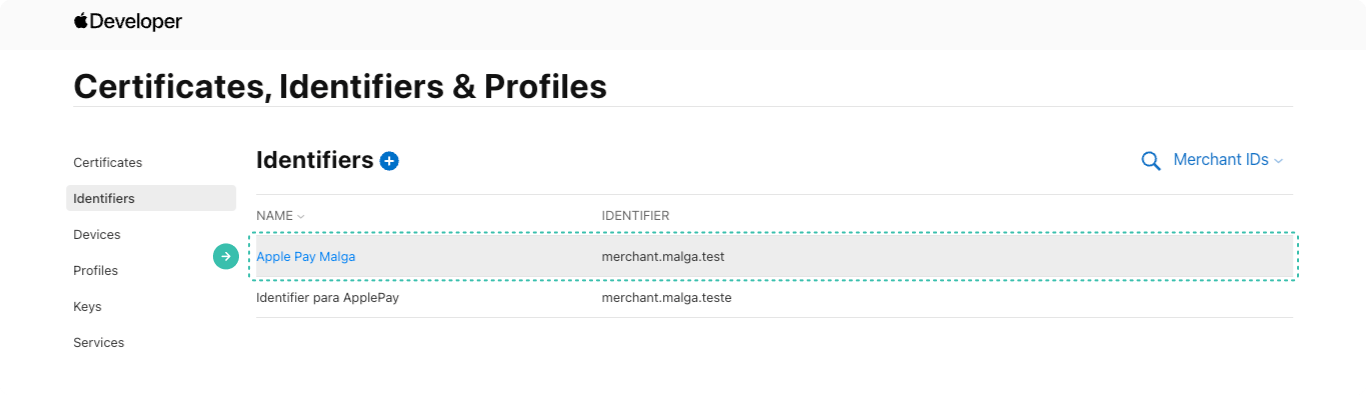 3. Em "Apple Pay Merchant Identity Certificate", clique em "Create Certificate":
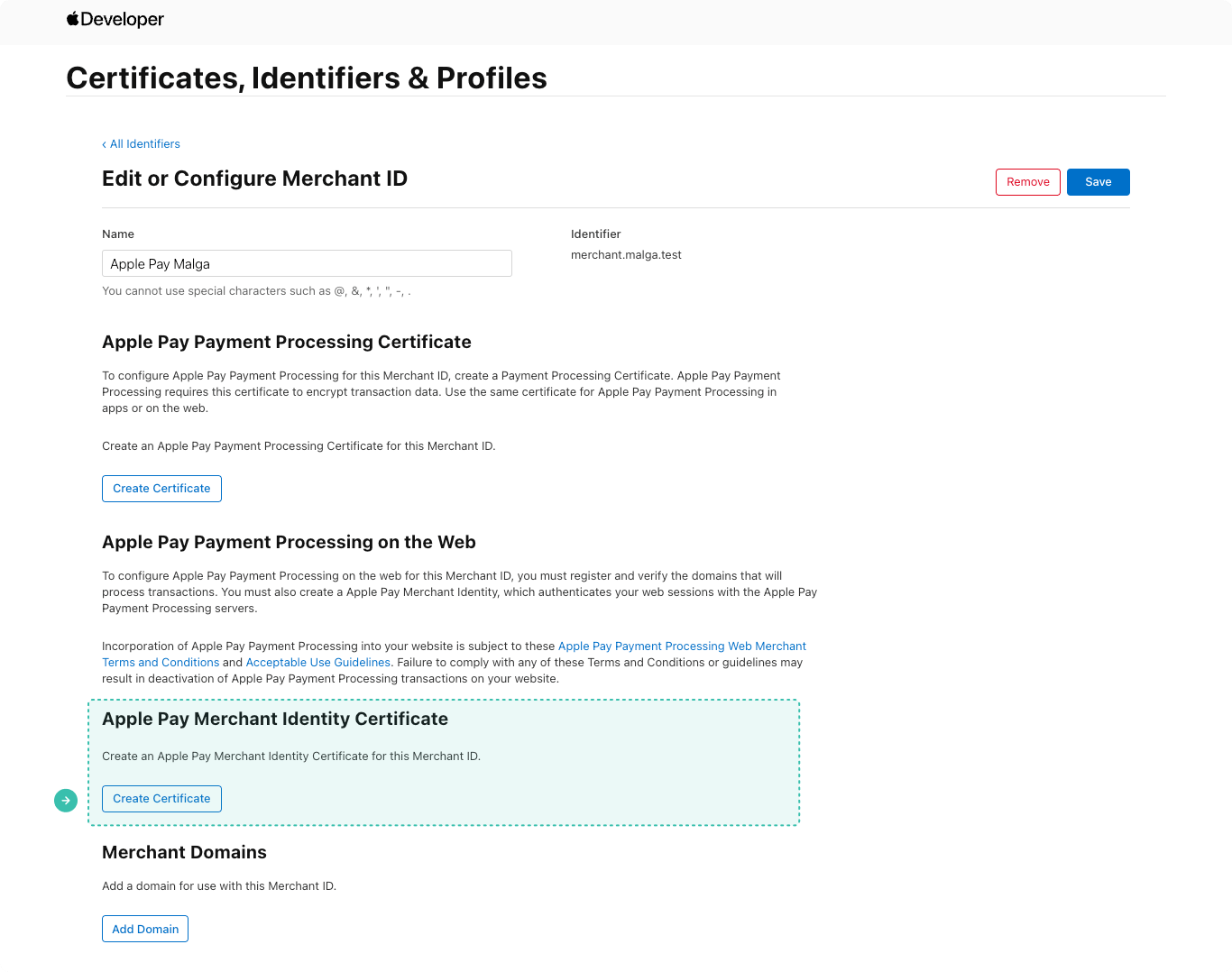 4. Em "Choose File", faça upload do certificado ".CSR" gerado e clique em "Continue":
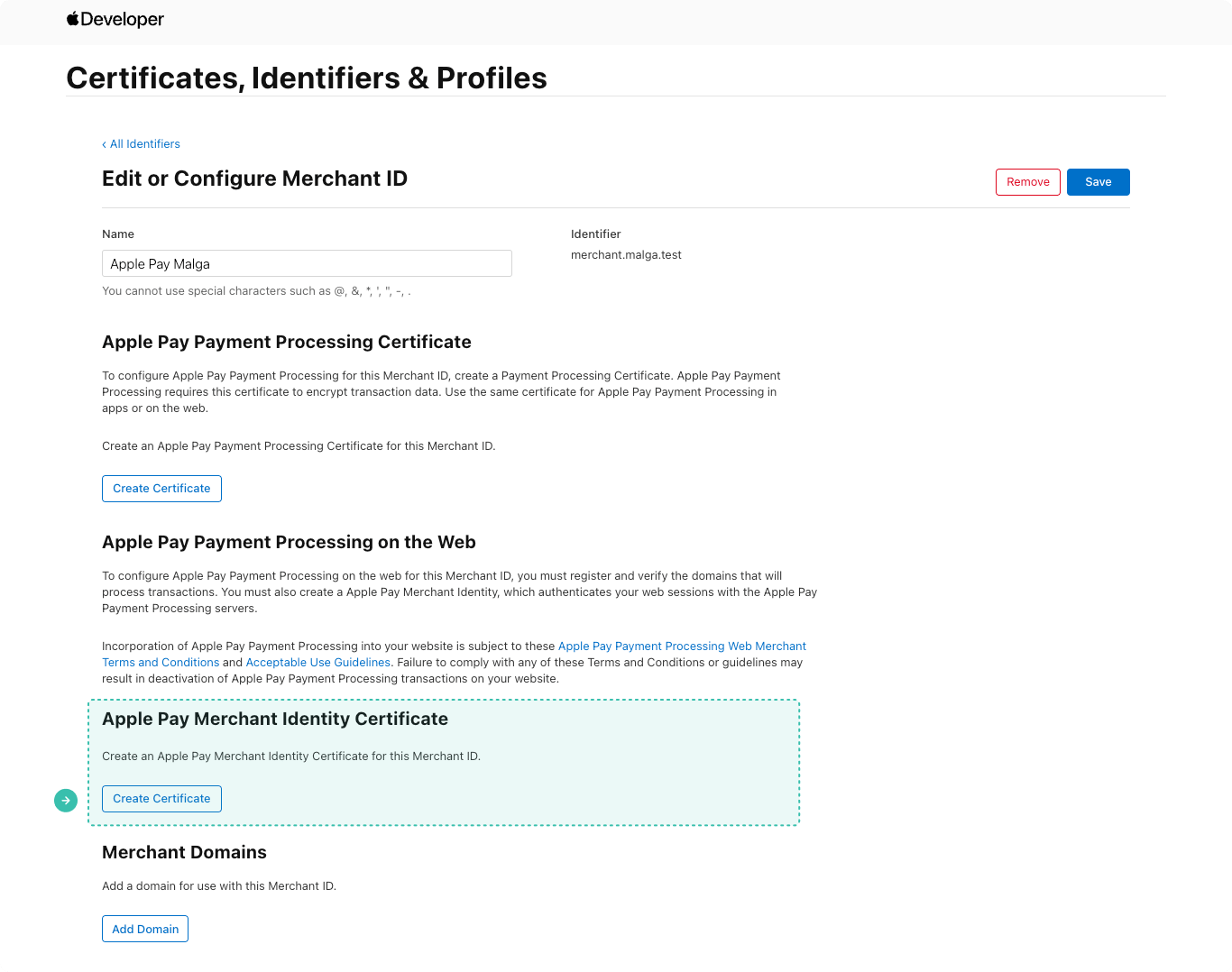 5. Baixe o certificado de identificação do merchant gerado em "Download":